

Installing PayBridgeNP on your Shopify store is a six-step process. Plan for about 10 minutes end to end, mostly clicking through Shopify’s admin. No code changes on your site.Documentation Index
Fetch the complete documentation index at: https://docs.paybridgenp.com/llms.txt
Use this file to discover all available pages before exploring further.
Before you start
You need:- A Shopify store - any plan, dev store or live store, as long as its currency is NPR
- A PayBridgeNP API key - get one from the PayBridgeNP dashboard under Settings → API Keys. Use
sk_test_…to test,sk_live_…when you’re ready to take real payments - A way to receive SMS on your phone - the reminder worker sends test messages during setup
Step 1 - Install the app
Go to paybridgenp.com/integrations/shopify, type your shop domain (yourstore.myshopify.com) in the install form, and click Install.
You’ll be redirected to Shopify’s standard install consent screen, which lists the permissions the app needs - reading and updating orders, creating draft orders, reading customer contact info (to send payment-link SMS and email), and reading product info. Approve to continue.
Click Install app. Shopify redirects you to the embedded PayBridgeNP settings page inside your admin.
Step 2 - Create a Shopify manual payment method
This is the step most merchants miss. Until you do this, no order will ever flow through PayBridgeNP.- In your Shopify admin, go to Settings → Payments
- Scroll to Manual payment methods (under “Additional payment methods”)
- Click Add manual payment method
- At the bottom of the dropdown, pick Create custom payment method
-
Fill in the form:
Field Value Custom payment method name PayBridgeNP(this exact string - you’ll paste it into the app settings in the next step)Additional details Pay with eSewa, Khalti, or Fonepay. You'll be redirected to complete your payment.Payment instructions After placing your order, you'll receive a secure payment link via SMS, email, and on the order confirmation page. - Click Activate
Step 3 - Paste your PayBridgeNP API key
Back in the embedded app (still in your Shopify admin, under Apps → PayBridgeNP → Settings):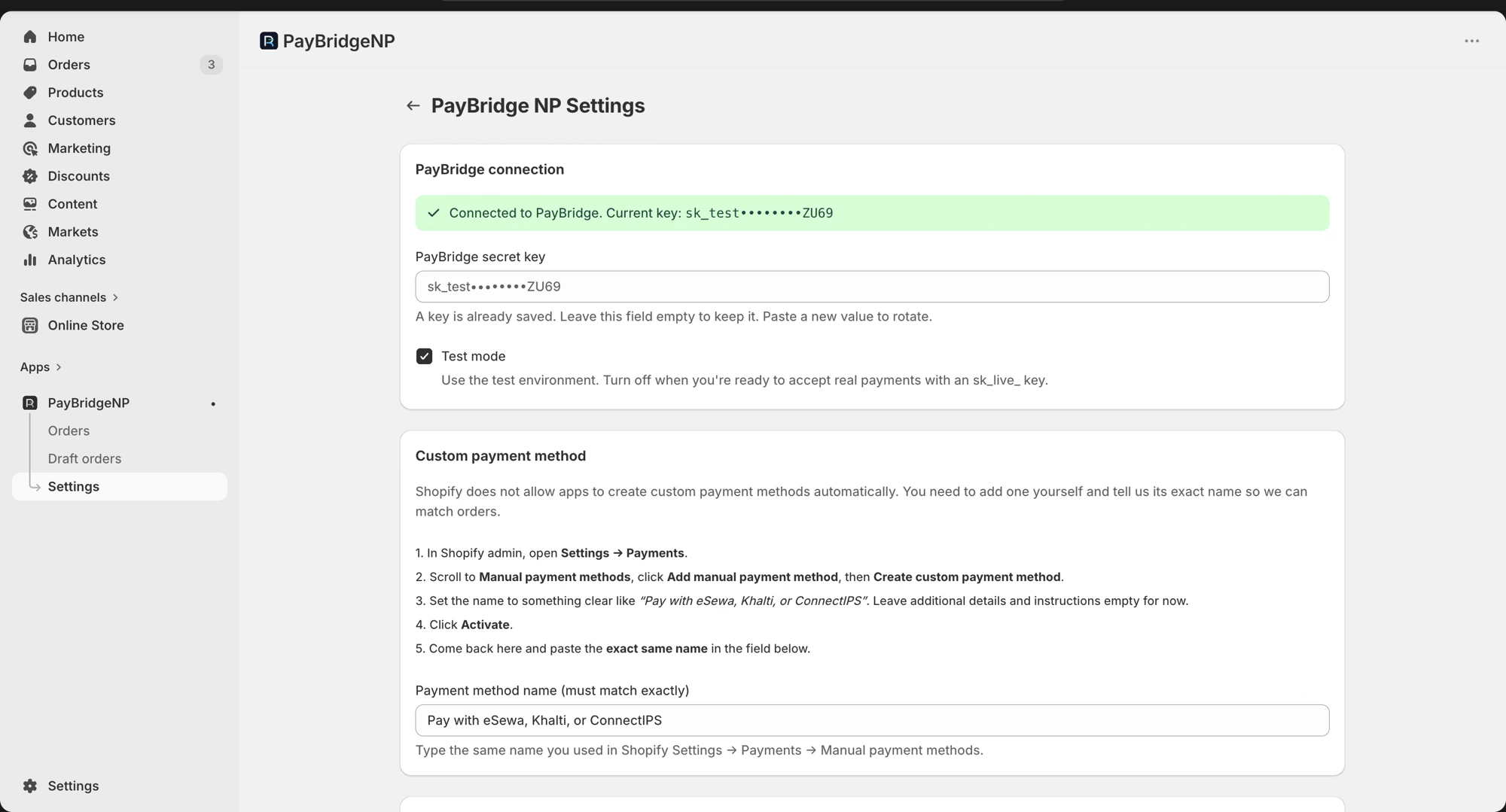
- Find the PayBridgeNP API key field
- Paste your
sk_test_…orsk_live_…key - Click Save
- Trailing whitespace on the key
- Wrong environment (you pasted a live key but your PayBridgeNP project is in sandbox, or vice versa)
- Key was revoked or rotated in the PayBridgeNP dashboard
Step 4 - Paste the manual method handle
On the same settings page, find the Manual method handle field and paste exactly the same string you used for the Shopify payment method name in Step 2 (e.g.PayBridgeNP).
Click Save.
This tells the app which Shopify payment method to intercept. When an order comes in with a different payment method (cash on delivery, bank transfer, etc.), it’s left alone.
Other settings on the same page
Below the connection section you’ll see toggles for customer notifications and alternative flows. You can leave these at their defaults for the first test order.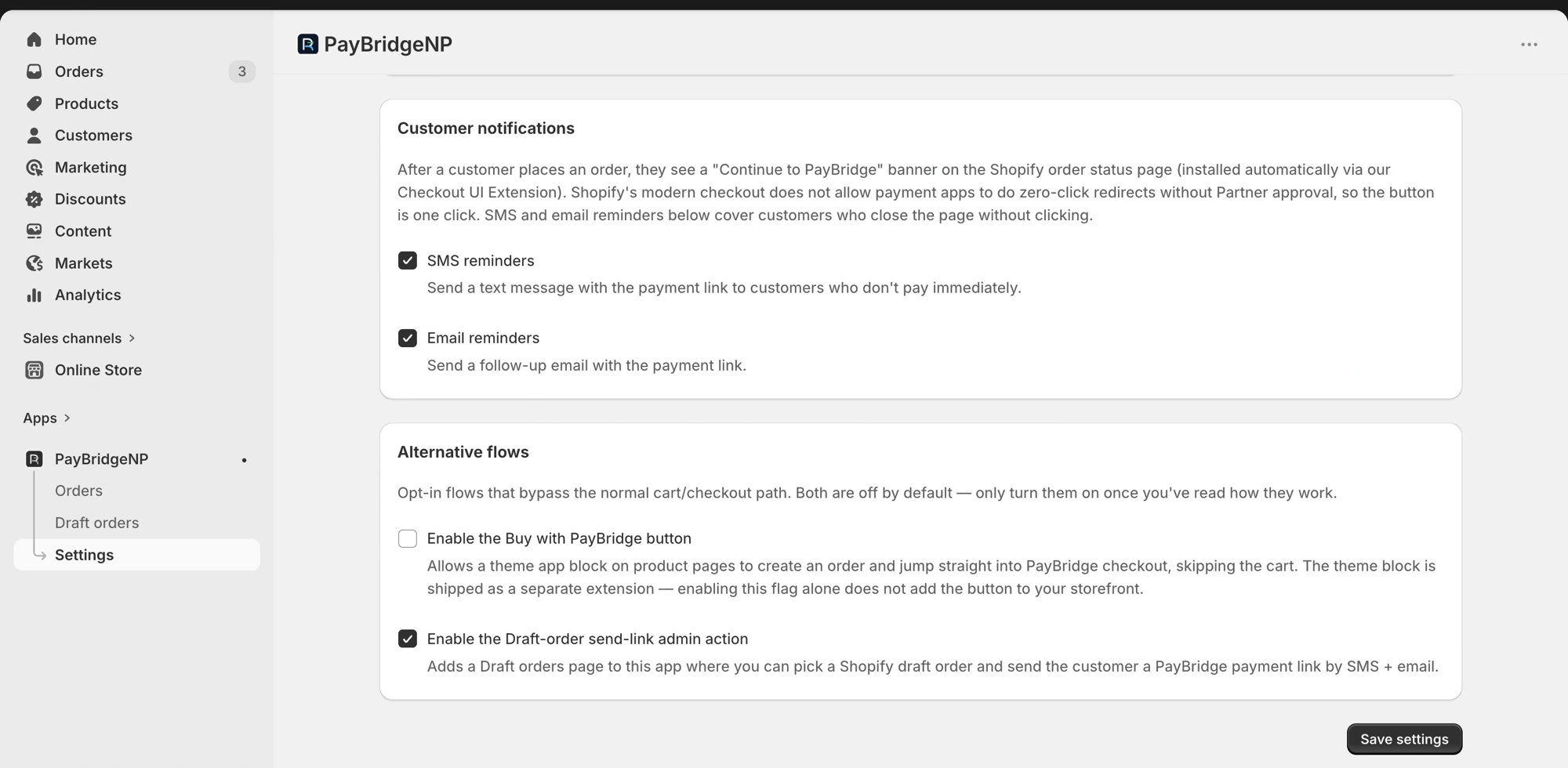
- Customer notifications - SMS and email reminders are on by default. They fire when a customer places an order but doesn’t pay within the configured window.
- Alternative flows - off by default. See the alternative flows section of How it works for what these do.
Step 5 - Add the PayBridgeNP redirect block to your Thank-you page
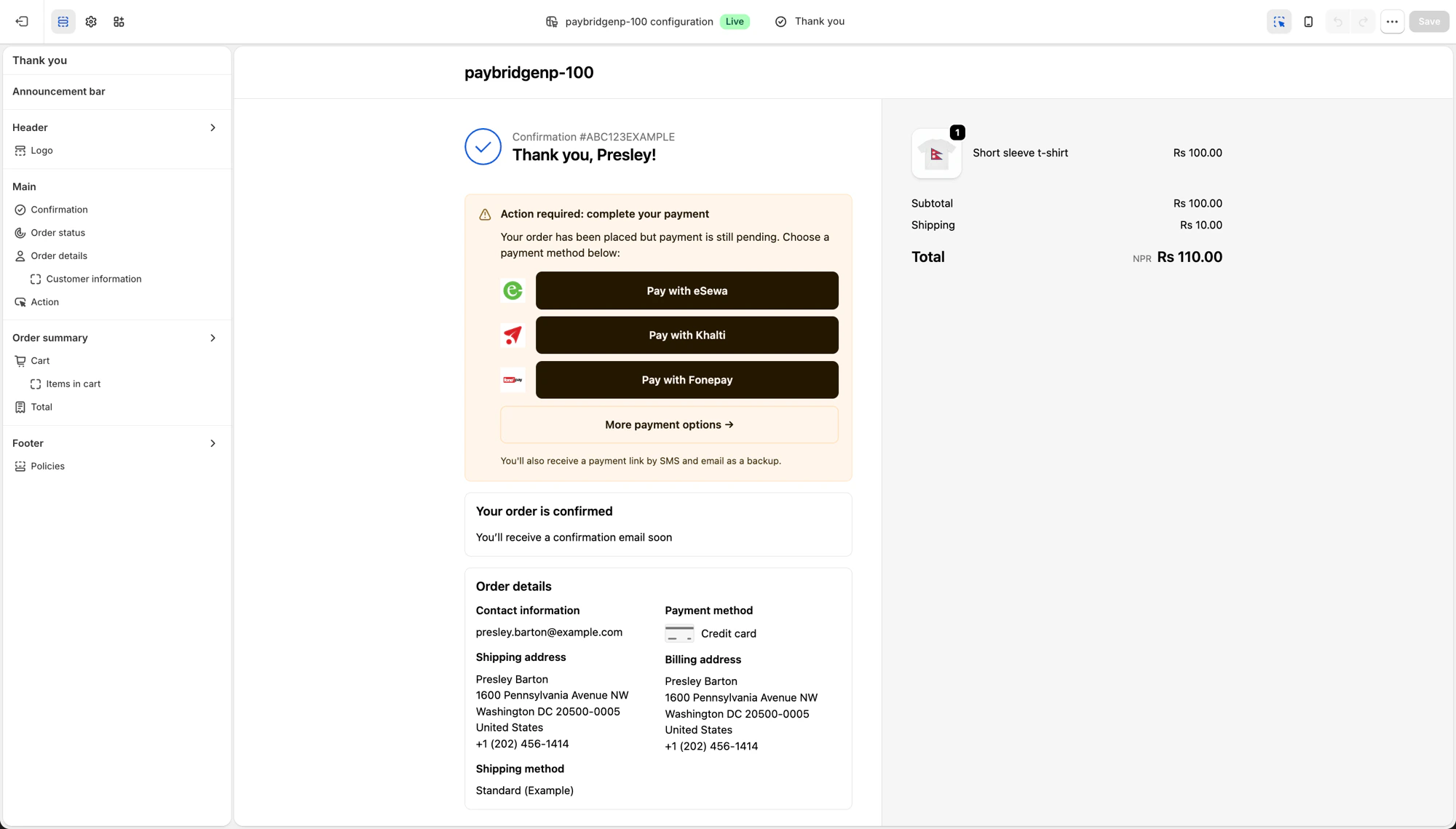
Shopify ships a Checkout UI Extension with the app, but it does not let payment apps drop a block into your checkout for you. You have to add it once, by hand. Until you do, customers will not see the “Continue to PayBridgeNP” button on the thank-you page (only the SMS / email backup links).- In Shopify admin, open Settings → Checkout.
- On your active checkout profile, click Customize.
- In the left nav of the editor, click Thank you.
- Click Add block and pick PayBridgeNP redirect.
- Click Save. There is no per-block config - the app URL is baked in.
Step 6 - Place a test order
Go to your storefront, add any product to cart, proceed to checkout, and at the payment step pick PayBridgeNP. Click Complete order.What should happen
- Shopify creates the order in Pending state and redirects the customer to the Thank-you page
- The app embeds a row of Pay with eSewa / Khalti / Fonepay buttons (one per wallet you have enabled), plus a More payment options → fallback link
- The same block appears later in the customer’s Order Status page inside their Shopify account, so they can come back and finish if they close the tab
- The customer also receives an SMS and email with the same payment link, as backup
- Clicking a wallet button sends the customer straight to that wallet’s payment page (no PayBridgeNP picker in between). Clicking More payment options → lands them on the PayBridgeNP hosted checkout picker.
- After payment, the Shopify order flips to Paid within seconds
- The customer is redirected back to the Shopify order status page, now showing Paid
Sandbox test credentials
If your PayBridgeNP API key starts withsk_test_, use these built-in test credentials on the PayBridgeNP hosted checkout:
| Provider | Credential |
|---|---|
| eSewa | Any amount, merchant code EPAYTEST |
| Khalti | Phone 9800000001, PIN 1111, OTP 987654 |
Protected customer data
PayBridgeNP for Shopify reads the customer’s email, phone, and name from each order so we can send the payment-link SMS and email. We also read the shipping address (and, when address collection is enabled on the checkout, write it back to the order). We do not read order history beyond the current order, do not use the data for marketing, and do not run automated profiling. Customer email and phone are stored encrypted at rest in the app’s database and automatically nulled out 90 days after the order reaches a terminal state (paid, cancelled, or expired). This satisfies Shopify’s Protected customer data and data-minimisation requirements.What’s next
- How it works - the end-to-end payment and refund flows explained
- Troubleshooting - common setup issues and how to fix them