

This page walks through every flow the Shopify app supports - what the customer sees, what the merchant sees, and how the order ends up marked Paid in Shopify. Read it once after installation and you’ll know where to look when something doesn’t behave as expected.Documentation Index
Fetch the complete documentation index at: https://docs.paybridgenp.com/llms.txt
Use this file to discover all available pages before exploring further.
Main payment flow
From the moment a customer clicks Complete order to the moment their Shopify order shows Paid:Customer places an order
The customer picks PayBridgeNP as their payment method on your Shopify checkout page and clicks Complete order. Shopify creates the order in
pending state and lands the customer on the order status (Thank-you) page.The app picks up the new order
The app sees the new order, confirms it matches your configured Manual method handle, and prepares a PayBridgeNP checkout session for the order amount with the customer’s contact details. A copy of the payment link is queued as an SMS and email to the customer.
Customer sees the Thank-you page with provider buttons
The app embeds a small payment block on the Thank-you page that renders one button per wallet you have enabled - Pay with eSewa, Pay with Khalti, Pay with Fonepay - plus a More payment options → fallback that leads to the PayBridgeNP picker. The same block also appears in the customer’s Order Status page in their Shopify account, so a buyer who closes the tab can come back and finish later.The customer either picks a wallet on the page, taps the link in the SMS, or clicks the link in the email - all paths land them on the right payment provider.The buttons intentionally do not auto-redirect. A silent redirect surprises customers, so one click to confirm is the right call.
Customer pays on the chosen wallet
Picking a wallet sends the customer straight to eSewa, Khalti, or Fonepay (no extra picker step). They complete the payment there. If they used More payment options →, PayBridgeNP’s hosted checkout shows your merchant name, the order amount, and lets the customer pick a wallet first.
The Shopify order flips to Paid
Once the wallet confirms the payment, the app marks the Shopify order as Paid. Typical end-to-end latency from wallet confirmation to the order flipping: under 5 seconds.
Where you see it in the admin
Every PayBridgeNP order shows up in the embedded Orders page inside Shopify admin, filterable by payment status: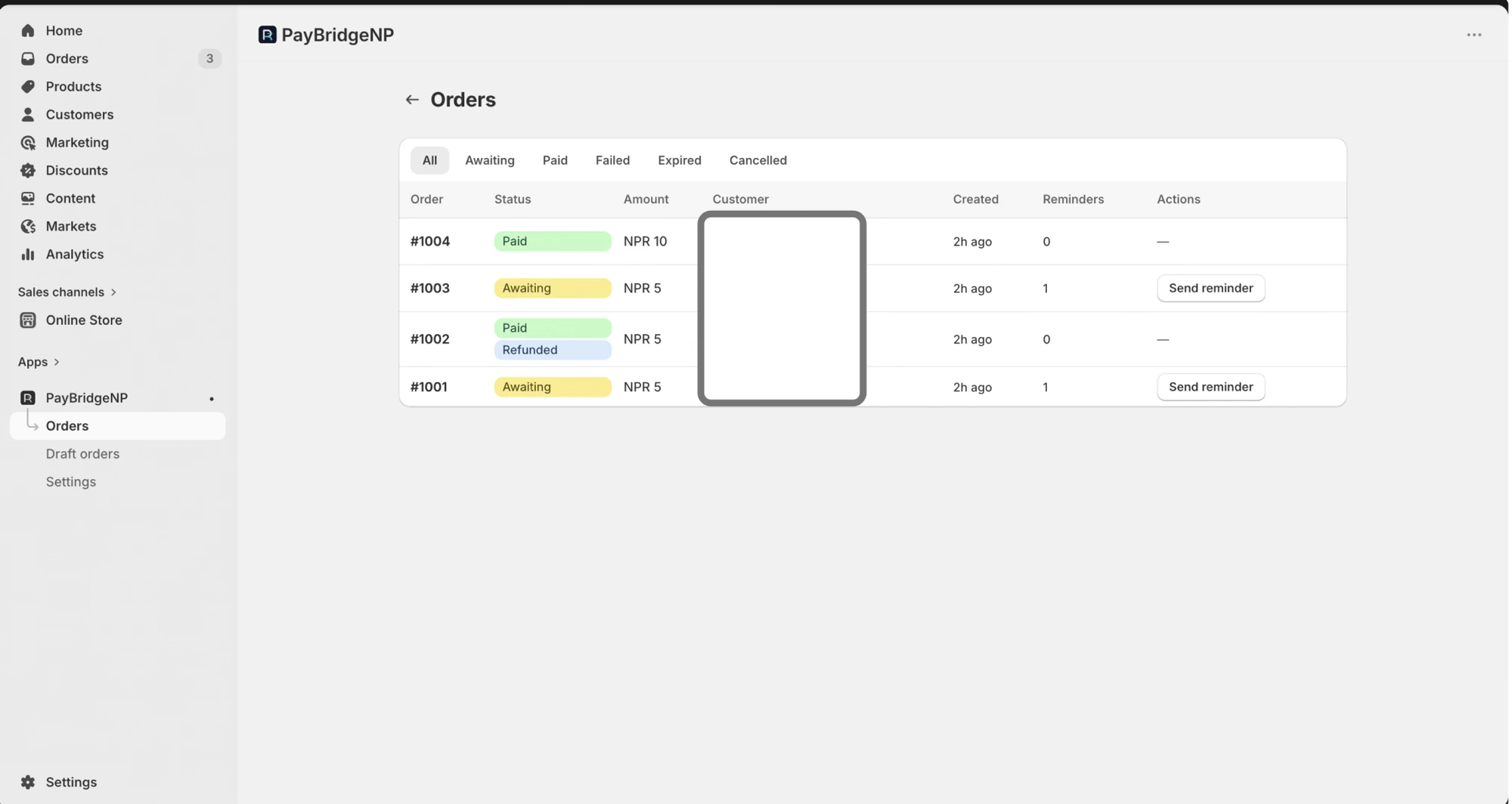
What if the customer leaves without paying?
The order sits inpending state and the reminder worker takes over. The app sends a series of branded SMS and email reminders over the next two days, and if the customer still hasn’t paid, the order is automatically cancelled and inventory is released. You can tune the reminder schedule and auto-cancel window in the app settings.
Refund flows
PayBridgeNP is a manual payment method from Shopify’s point of view. Shopify can’t refund a manual payment method through its built-in admin UI - the money has to come out of PayBridgeNP’s wallet integration, not Shopify’s. The app supports two ways to initiate a refund:Flow A - Merchant clicks Refund in Shopify admin
- Merchant opens the order in Shopify admin and clicks Refund
- The app sees the refund attempt and surfaces a banner on the embedded Orders page telling the merchant to complete the refund from the PayBridgeNP dashboard
- Merchant opens the PayBridgeNP dashboard, finds the payment, clicks Refund
- PayBridgeNP processes the refund with the wallet provider
- The app mirrors the refund onto the Shopify order automatically (see Flow B below)
Flow B - Merchant clicks Refund in the PayBridgeNP dashboard
This is the path the app is really built for. Skip Flow A’s first two steps and go straight to the PayBridgeNP dashboard.- Merchant finds the payment in PayBridgeNP dashboard and clicks Refund, entering the amount
- PayBridgeNP processes the refund with the wallet
- The Shopify order automatically flips to Partially refunded or Refunded depending on the cumulative amount
Full vs partial refunds
| Cumulative refund amount | Result on the Shopify order |
|---|---|
| Equal to order total | Order flips to Refunded |
| Less than order total | Order flips to Partially refunded; line items are NOT restocked |
Alternative flows
Beyond the main checkout flow, the app supports two alternative ways to trigger a PayBridgeNP payment.Alt 1 - Buy with PayBridgeNP
A storefront theme block that lets customers pay for a single product with PayBridgeNP without going through Shopify’s checkout. Useful for one-off digital products, donation buttons, and flash-sale items. See Buy Now Button for setup.Alt 2 - Draft order payment links
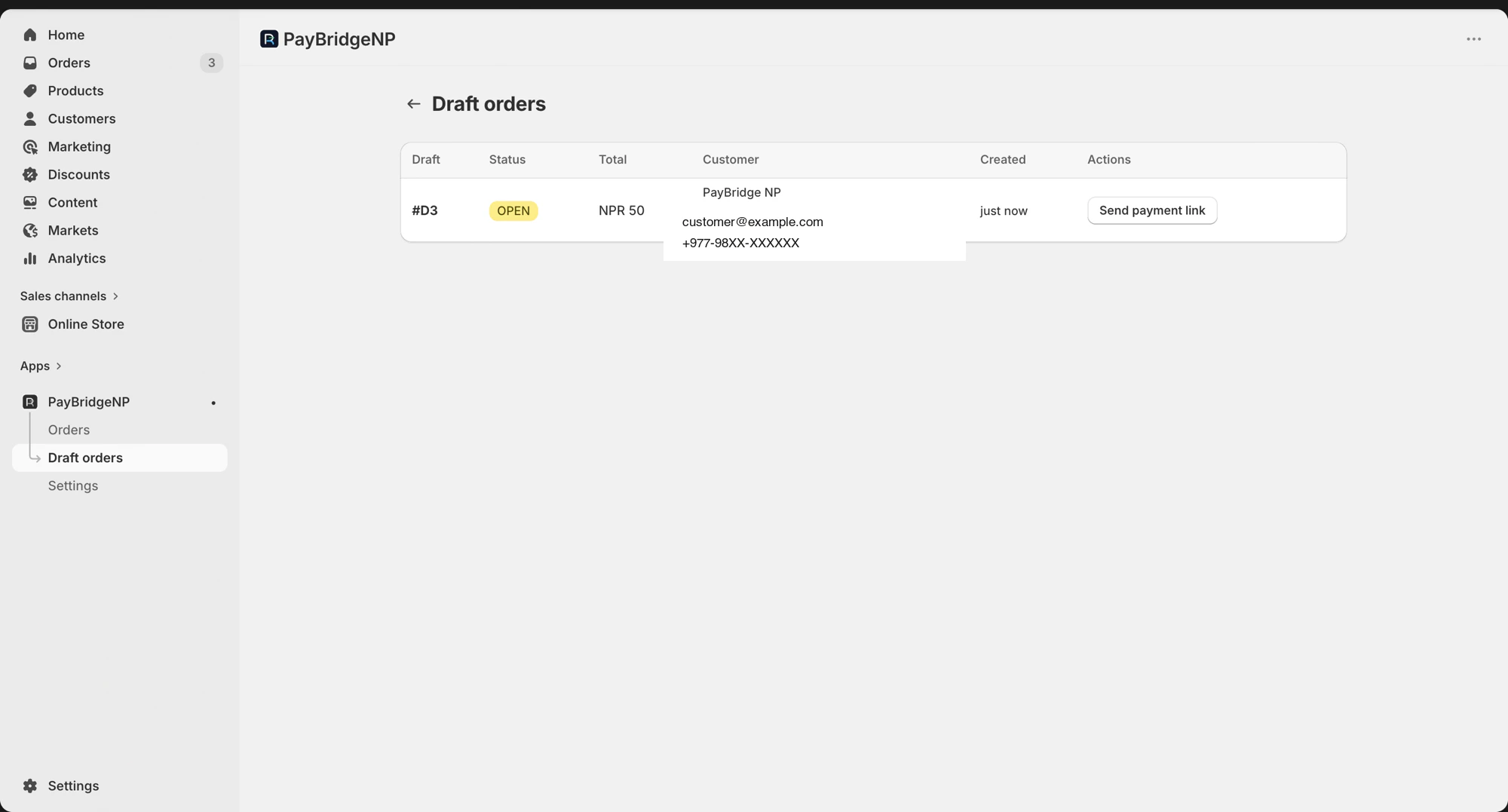
- In Shopify admin, build a draft order the usual way: pick a customer (must have email or phone), add products, set a price, save
- In the embedded PayBridgeNP app, go to Draft orders
- Find the draft, click Send payment link
- The customer receives an SMS + email with the PayBridgeNP checkout URL. Once they pay, the order is marked Paid just like the main flow.
What happens on uninstall
When a merchant uninstalls the app from Shopify admin, the app stops accepting webhooks for that shop and stops sending reminders for any orders still awaiting payment. The shop’s stored credentials are cleared. If you later reinstall, paste your PayBridgeNP API key again from the embedded settings page and you’re back in business.Need more detail?
- Install the app - step-by-step setup
- Troubleshooting - common issues and how to fix them