

Documentation Index
Fetch the complete documentation index at: https://docs.paybridgenp.com/llms.txt
Use this file to discover all available pages before exploring further.
Overview
The Buy Now button lets customers skip the cart and Shopify checkout, going directly from a product page to PayBridge’s hosted checkout. Customers pay with eSewa, Khalti, or Fonepay in just two clicks.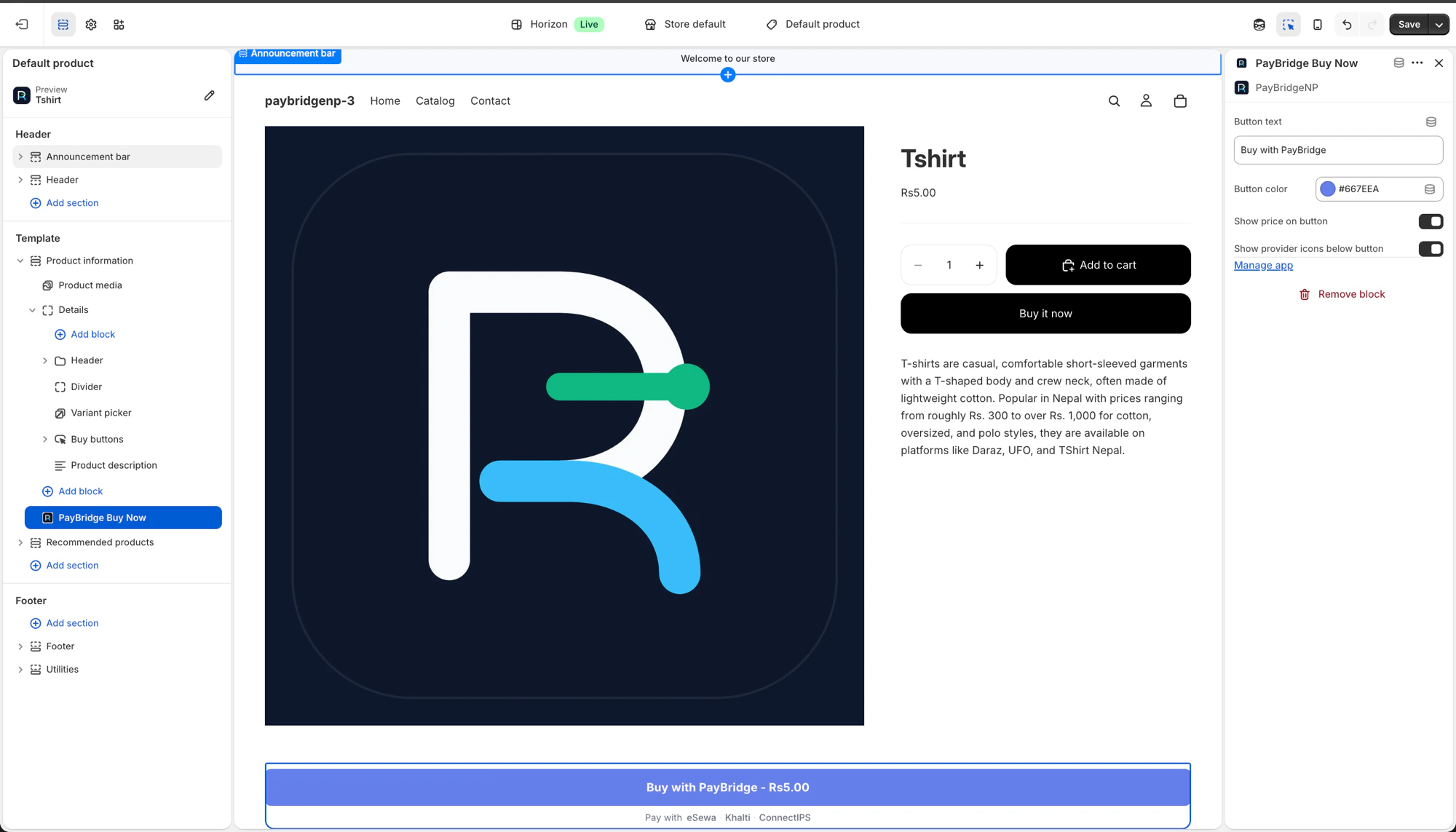
Setup
Step 1: Enable in app settings
- Open your Shopify admin and go to Apps > PayBridgeNP > Settings
- Under “Alternative flows”, check Enable the Buy with PayBridgeNP button
- Click Save settings
Step 2: Add the block to your theme
- Go to Online Store > Themes > Customize
- Navigate to a product page using the page selector at the top
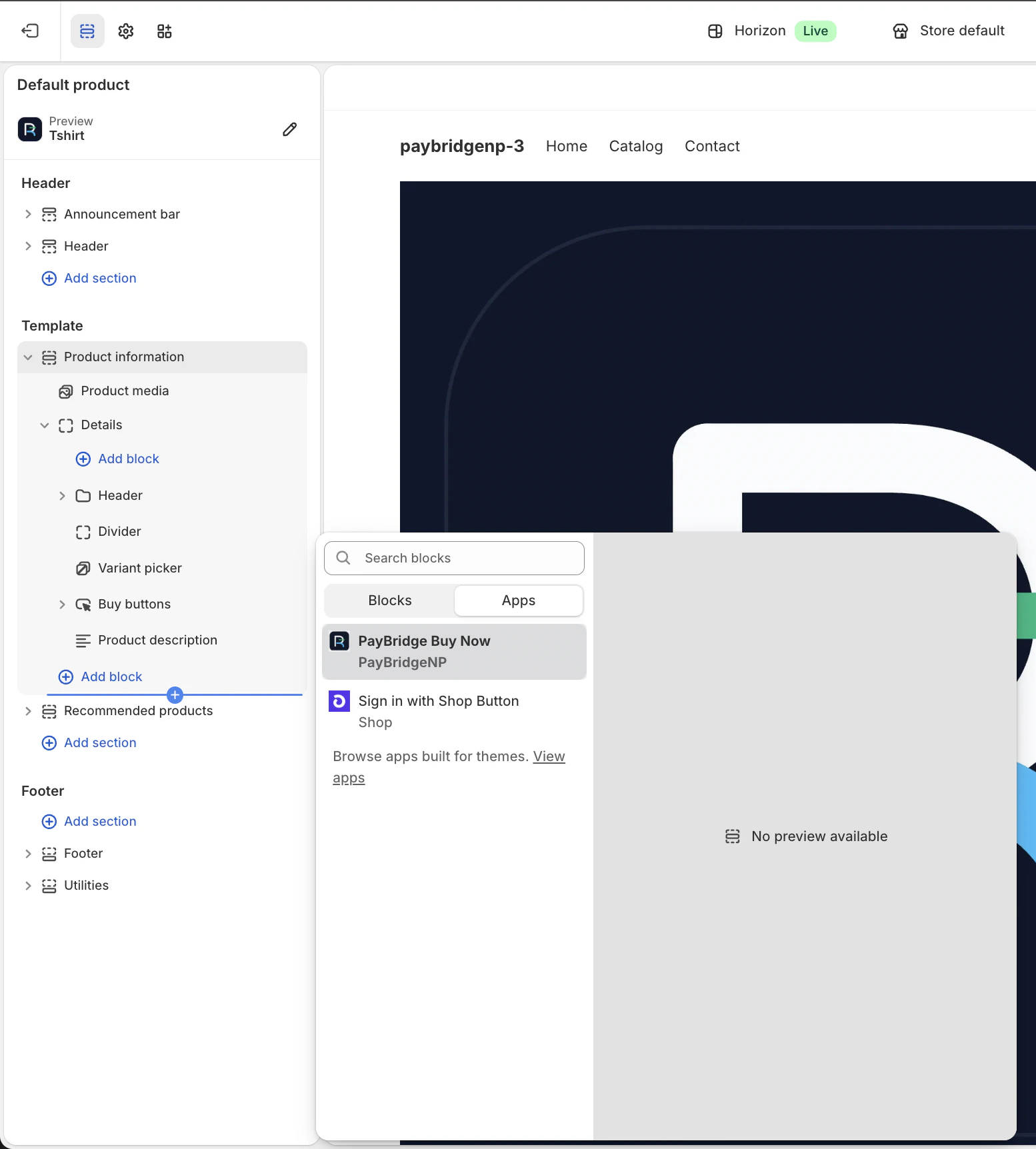
- In the left sidebar under “Product information”, click Add block
- Switch to the Apps tab
- Select PayBridge Buy Now
- The block is added to your product page. Drag it to your preferred position (below “Buy it now” is recommended)
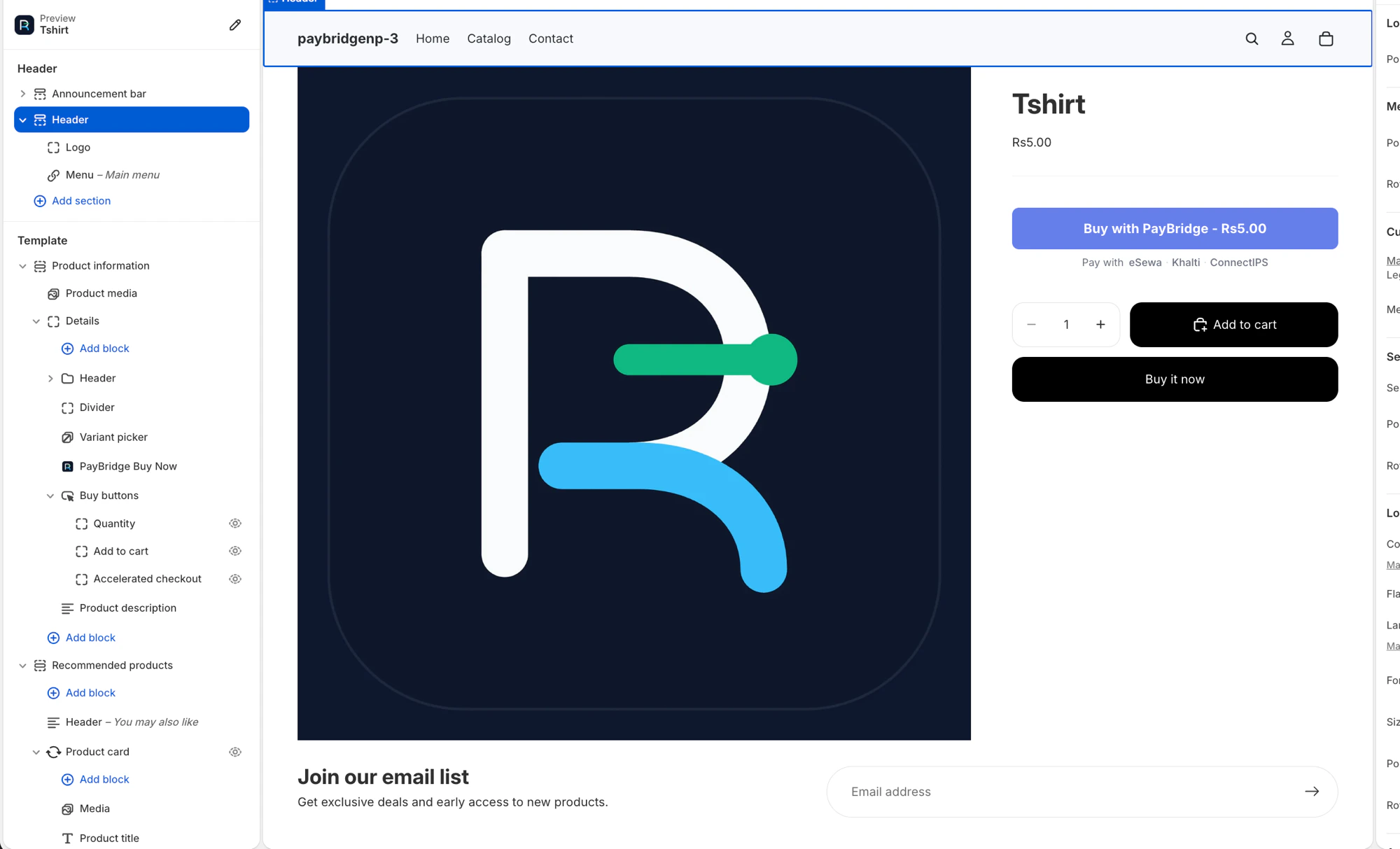
- Click Save
The PayBridge Buy Now block only appears on product pages. You won’t see it on the homepage or collection pages.
Step 3: Customize the button
You can customize the button in two places:Option A: From the theme editor
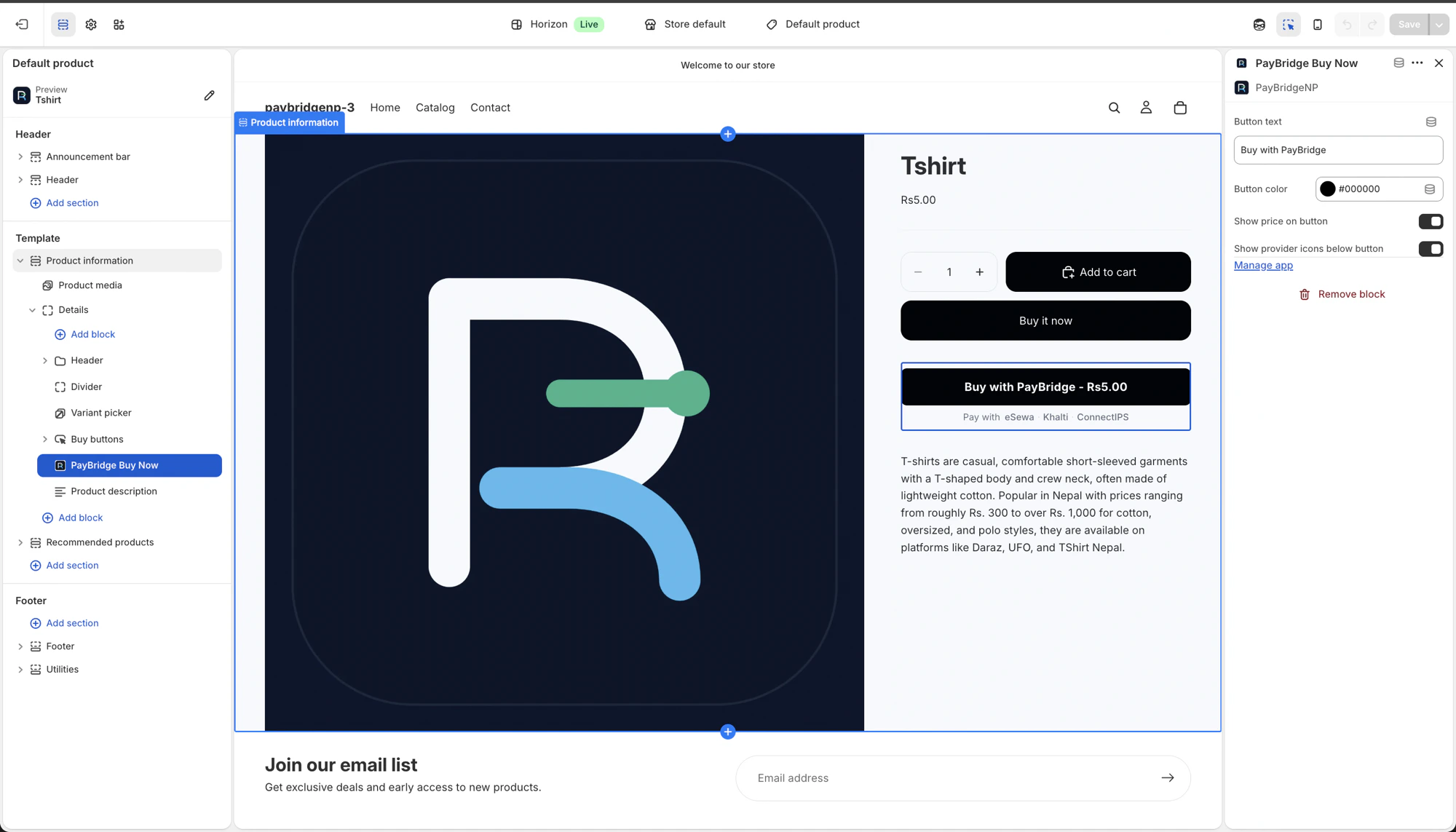
Click the “PayBridge Buy Now” block in the sidebar to open its settings panel: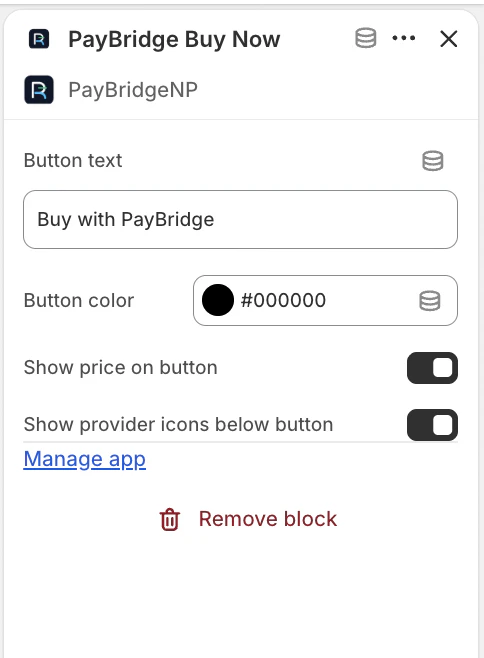
Option B: From the app settings (recommended)
Go to Apps > PayBridgeNP > Settings and scroll to the Buy Now button design section. Changes here apply globally across all product pages.If you set values in both places, the app settings take priority over the theme editor settings. The theme editor acts as a per-page override.
Available settings
| Setting | Description | Default |
|---|---|---|
| Button text | The text displayed on the button | ”Buy with PayBridgeNP” |
| Button color | The background color of the button | #667eea (PayBridge blue) |
| Show price on button | Whether to append the variant price (e.g. ”- Rs5.00”) | On |
| Show provider icons | Display “Pay with eSewa, Khalti, Fonepay” below the button | On |
How it works
When a customer clicks the Buy Now button:- Order created - A Shopify order is created for the selected variant and quantity
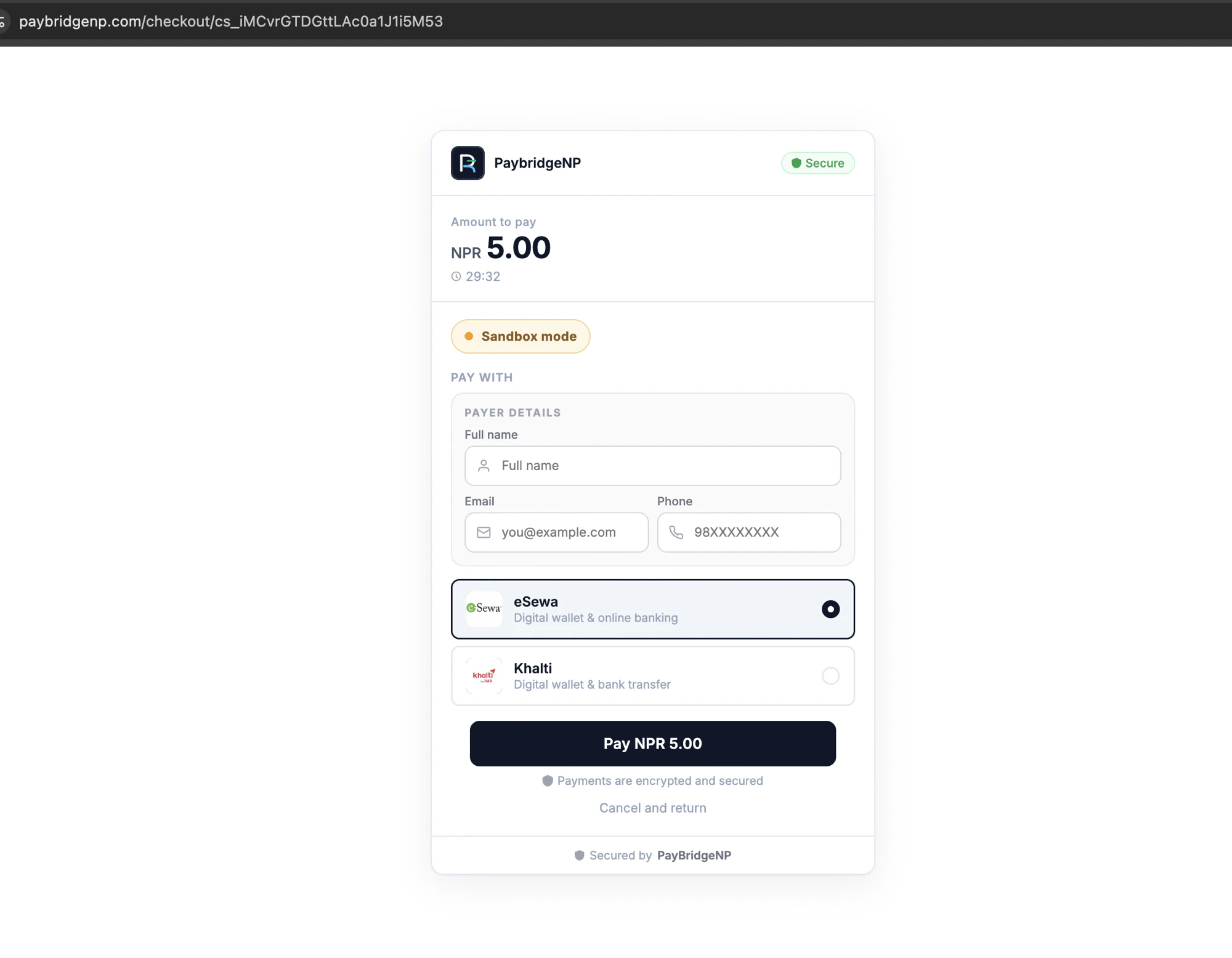
- Redirect - The customer is redirected to PayBridge’s hosted checkout page, which shows the product name and amount
- Payment - The customer pays with their preferred provider (eSewa, Khalti, or Fonepay)
- Order paid - The Shopify order is automatically marked as paid
- Customer info - The customer’s name, email, and phone from the checkout are added to the Shopify order
Features
- Variant-aware - The button automatically updates when the customer selects a different size, color, or option
- Quantity sync - Picks up the quantity from the product page’s quantity selector
- Out-of-stock handling - Button is disabled and shows “Sold Out” for unavailable variants
- Mobile responsive - Full-width button that works on all screen sizes
- Double-click protection - Shows a loading spinner and prevents duplicate orders
- Product name in checkout - The checkout page and receipt email include the product name and order reference
Customer experience
After clicking the button, the customer sees:- A brief “Preparing your payment…” loading page (1-3 seconds while the order is created)
- The PayBridge hosted checkout page showing the product name, amount, and payment options
- The provider’s payment page (eSewa or Khalti)
- A “Verifying your payment…” page (1-2 seconds)
- The Shopify order confirmation page
Merchant experience
Orders created via the Buy Now button:- Appear in your Shopify admin under Orders like any other order
- Are tagged for easy filtering in your admin order list
- Include a note identifying them as PayBridgeNP Buy Now orders
- Show the customer’s email and phone number (collected on the checkout page)
- Support refunds through the PayBridge dashboard
FAQ
Can I use this alongside the normal checkout flow?
Can I use this alongside the normal checkout flow?
Yes. The Buy Now button is independent of the thank-you page payment flow. Customers can still use “Add to cart” and go through Shopify’s normal checkout with your configured manual payment method. Both flows work simultaneously.
Does this work with all Shopify themes?
Does this work with all Shopify themes?
The Buy Now button works with all Online Store 2.0 themes (Dawn, Refresh, and any theme from the Shopify Theme Store). Vintage/legacy themes are not supported.
What happens if the customer doesn't complete payment?
What happens if the customer doesn't complete payment?
The order stays in “Payment pending” status. If you have SMS/email reminders enabled, the customer will receive reminders. After 48 hours (configurable), the order is automatically cancelled.
Does inventory get reserved?
Does inventory get reserved?
Yes. Inventory is deducted when the order is created, before the customer reaches the checkout page. If the customer doesn’t pay, inventory is automatically released after the expiry window.
Can I customize the button differently for specific products?
Can I customize the button differently for specific products?
Can I remove the button from specific products?
Can I remove the button from specific products?